
** NEW IMPROVED WEB STORE! | All users must register for a new account. | Register now > **

BUY ONLINE TO SAVE TIME AND INCREASE ORDER ACCURACY!

Sample
Support

Warranty Information

Standard Warranty

Precision Digital Corporation warrants its products, including ExDirect instrument housings, to be free from material or workmanship defects, when operated within published specifications. Precision Digital Corporation will, at its option, repair or replace any product that fails to function properly under normal and proper usage due to defects in materials or workmanship during the warranty period.

See Terms & Conditions for complete warranty information on Precision Digital products, including ExDirect instrument housings.

Software


MeterView Pro Programming Software

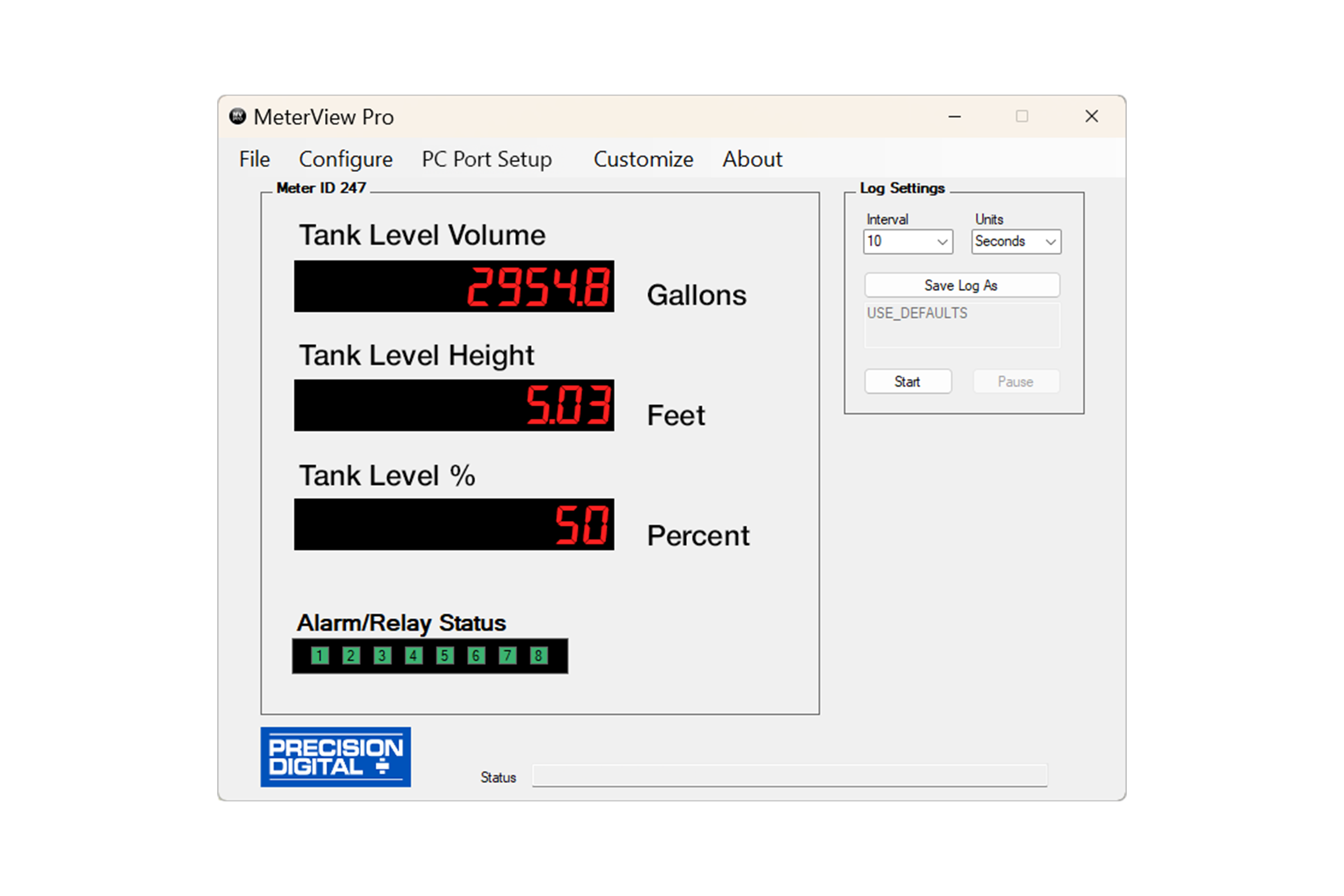
Configure, monitor, or datalog ProVu, Helios, or ProtEX-MAX meters using the PC-based MeterView Pro (MVP) software. MVP is available here as a free download and makes complete meter configuration simple and fast. Copying one meter configuration to another, as well as saving or retrieving a meter configuration file, is a snap. MVP's linearization utility makes even a 32-point linearization task clear and easy to do.


Also included is a basic meter monitor and data logger for use with the meter. Of course, with the inclusion of the powerful Modbus protocol, custom programs can be made even more versatile.
IMPORTANT!

Uninstall previous versions before downloading and running the latest version.


Connecting to the Computer

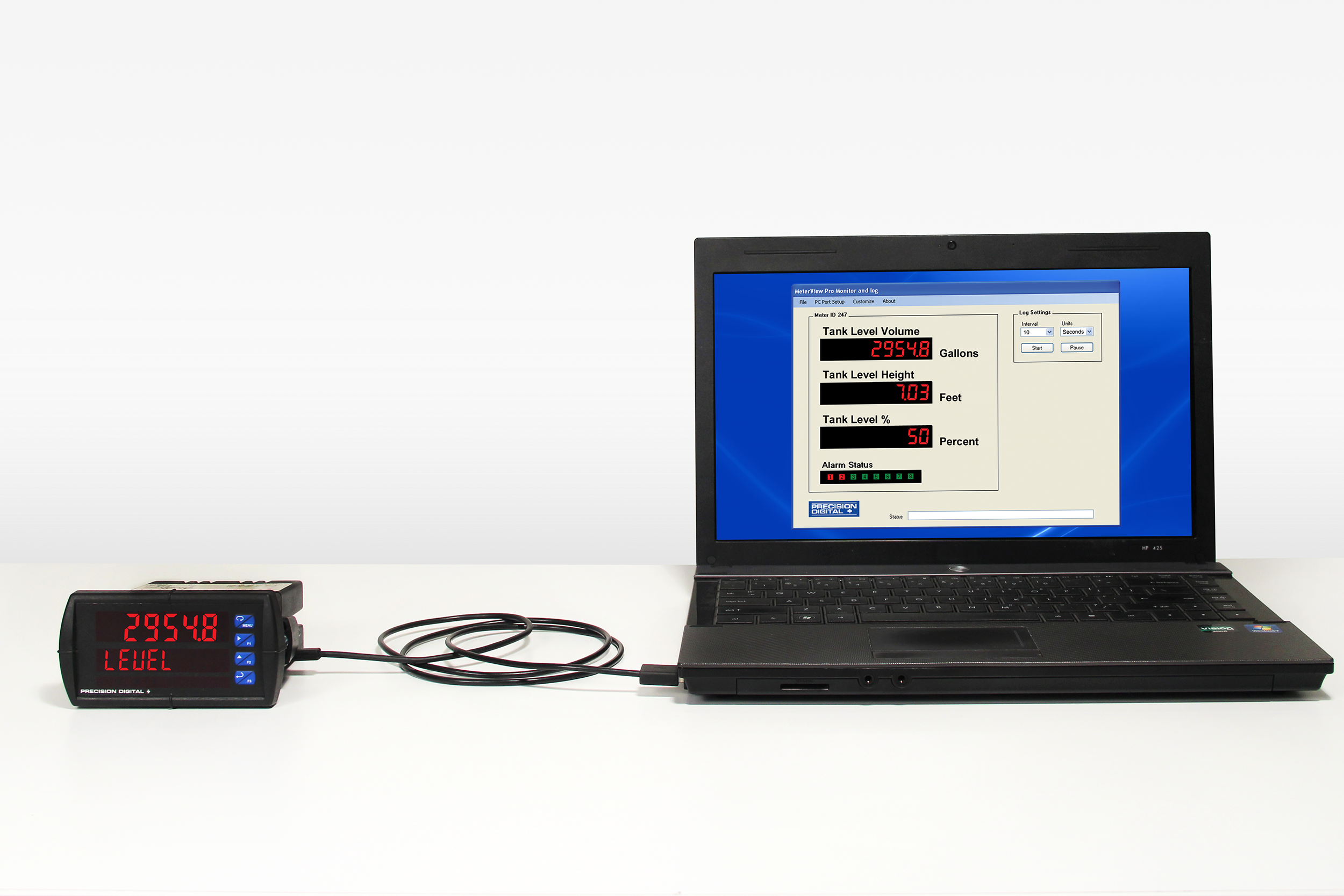
MeterView Pro software can be installed on any Microsoft Windows 10/11 computer. Connect one end of a USB cable to the meter and the other end to the computer. The meter is powered via USB, so there is no need to wire anything before programming it. USB connection is intended for configuration purposes only.

Specifications
General


System Requirements

Microsoft Windows 10/11


Communications

Onboard USB (firmware version 4.0 or higher), RS-232 Adapter, or RS-485 Adapter


Reports

Data logging: Save as CSV file format.

Configuration: Save as PDC file format or print configuration


Baud Rate

300 - 19,200 bps


Configuration

One meter at a time


Protocol

Modbus RTU (requires ProVu firmware version 2.0 or higher)


Latest Version

4.1.8


ScanView Software

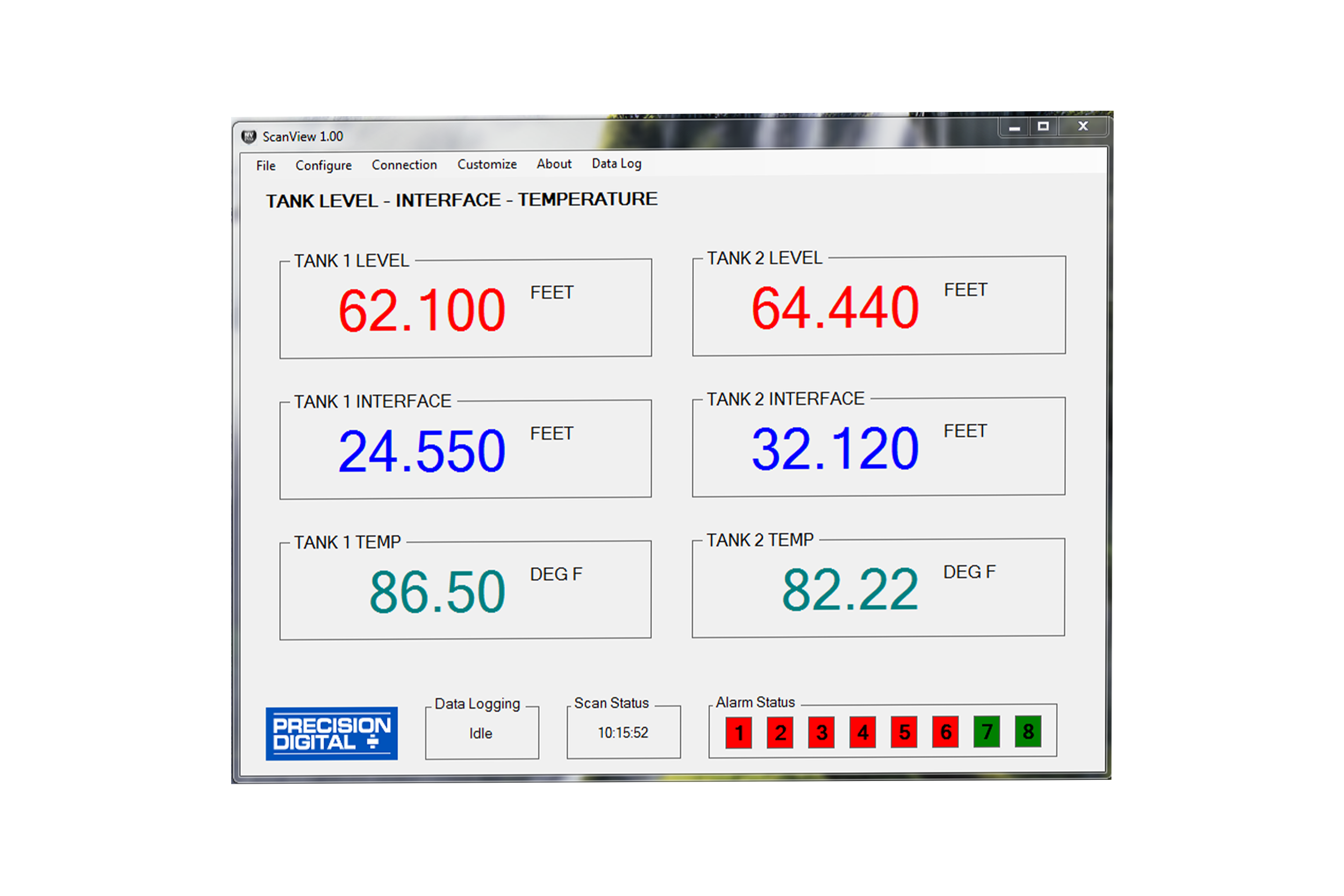
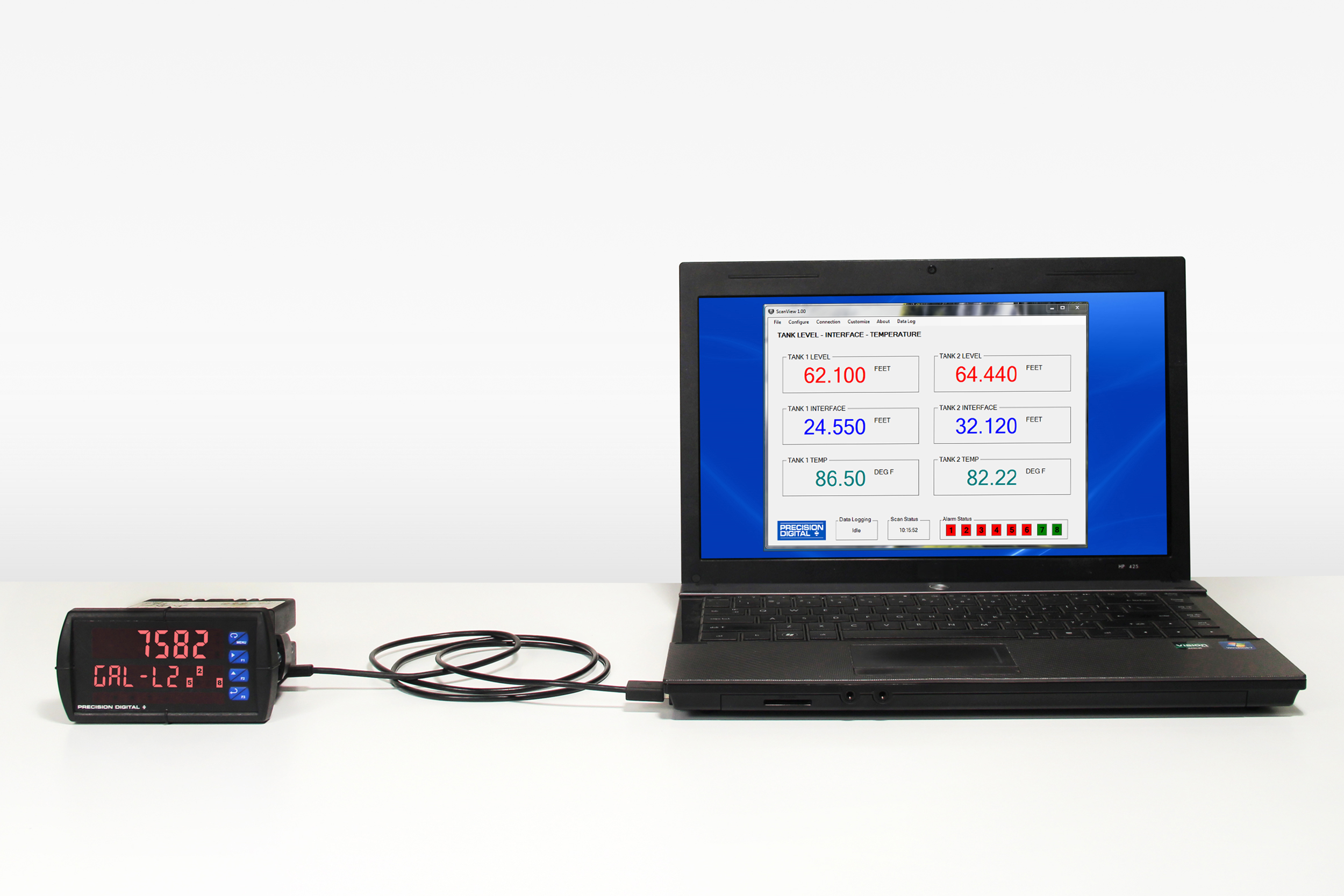
ScanView software allows for the programming and monitoring of one ProVu, ProtEX-MAX, or Helios Modbus Scanners. Use ScanView to program, monitor, and datalog using a PC. The PVs and math channels may be selected to display on the monitoring screen independently, and the monitoring screen can be customized so each has a configurable unit and tag. Even the display number colors may be changed. All 16 PVs, math channels, and their units and tags may be logged. The data is logged on the PC, and is available for use in common tools like Microsoft Excel. All configuration data can be saved to a file for future use.


Installation of ScanView software is required for technical support services to be provided for ProVu, ProtEX-MAX, or Helios Super Snoopers Modbus Scanners.

IMPORTANT!

Uninstall previous versions before downloading and running the latest version.


Connecting to the Computer

ScanView software can be installed on any Microsoft Windows 10/11 computer. Connect one end of a USB cable to the scanner and the other end to the computer. The scanner is powered via USB, so there is no need to wire anything before programming it. USB connection is intended for configuration purposes only.

Specifications
General


System Requirements

Microsoft Windows 10/11


Communications

Onboard USB (firmware version 4.0 or higher), RS-232 Adapter, or RS-485 Adapter


Meter Address

1-247


PV Slave ID

1-247, 256-259 for on-board Current & Voltage inputs


Baud Rate

300 bps to 19,200 bps; selection must match the baud rate selected in the meters


Screen Update Rate

Dependent on system and scanner settings


Configuration

Configure scanner settings one scanner at a time


Data Logging Report

Save as CSV file format


Configuration Report

Save as MVP file format or print configuration


Protocol

Modbus RTU


Latest Version

2.1.3


MeterView EX Programming Software

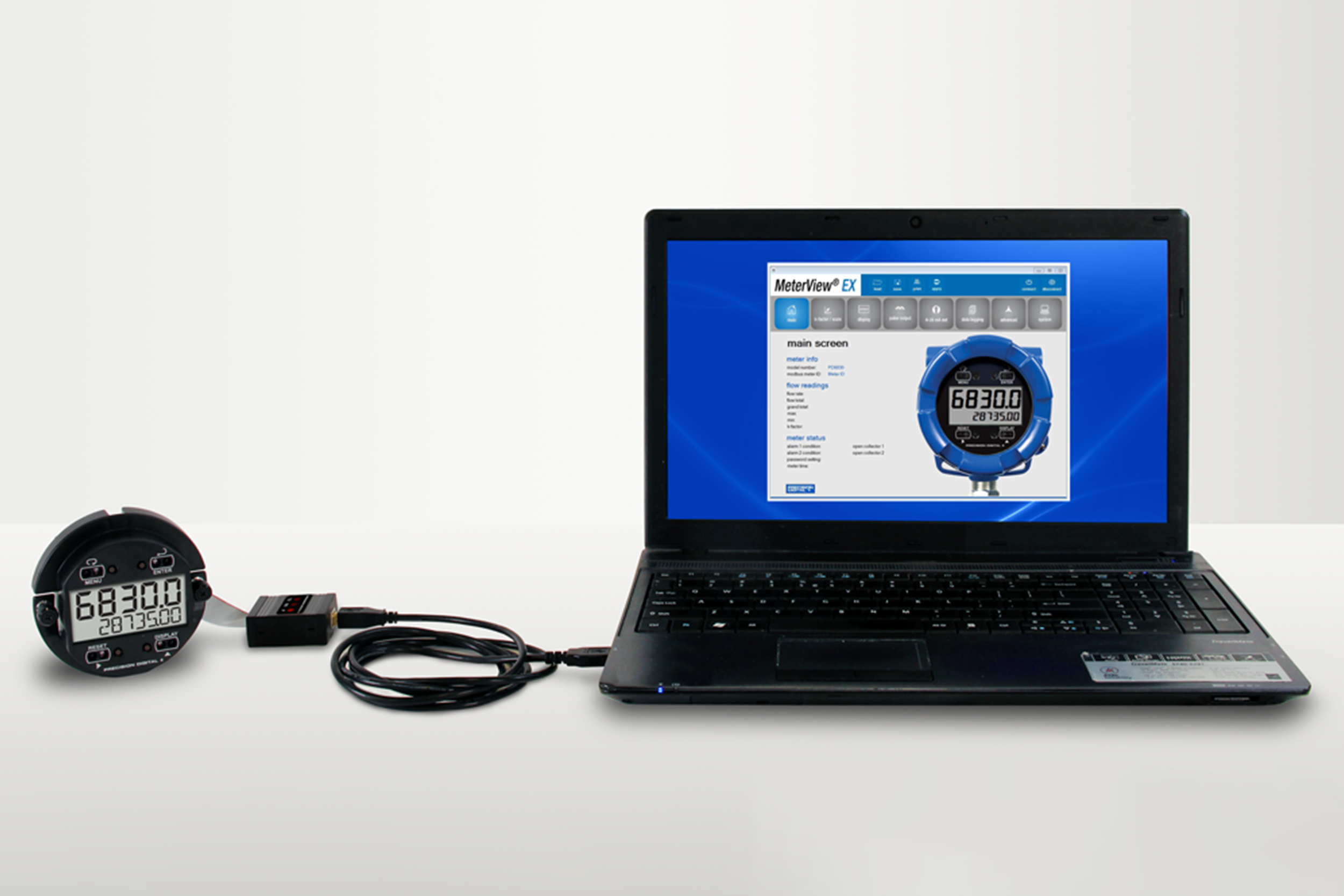
MeterView EX software allows for programming of the ProtEX-RTP PD6830 and Vantageview PD6730 pulse-input rate/totalizers. The meter connects to a PC with a PDA8068 meter to USB adapter, or models with the RS-485 option may use an appropriate RS-232 or USB serial converter. This remote programming software allows for all meter settings to be programmed from a PC through an easy-to-understand interface.

IMPORTANT!

Uninstall previous versions before downloading and running the latest version.


Connecting to the Computer

MeterView EX software can be installed on any Microsoft Windows 10/11 computer. Connect the meter to the computer using a PDA8068 USB Adapter (sold separately). The meter is powered via USB, so there is no need to wire anything before programming it. USB connection is intended for configuration purposes only.

Specifications
General


System Requirements

Microsoft Windows 10/11


Communications

All models: PDA8068 Meter-to-USB adapter. For models with RS-485: (PDA7485-N or PDA7485-I) RS-232 to RS-485 converter; or (PDA8485-N or PDA8485-I) USB to RS-485 converter. PDA8068 comes with a USB cable. PDA7485 does not come with an RS-232 cable; a standard RS-232 cable may be used. PDA8485 does not come with a USB cable; a standard USB cable may be used.


Address

1-247


Reports

Data logging: Save as ".csv" file format Configuration: Save as ".mve" file format or print configuration


Baud Rate

1200 bps to 115,200 bps


Configuration

Configure scanner settings one scanner at a time.


Data Logging Report

Save as CSV file format.


Protocol

Modbus RTU (Slave)


Latest Version

1.2


MeterView Programming Software

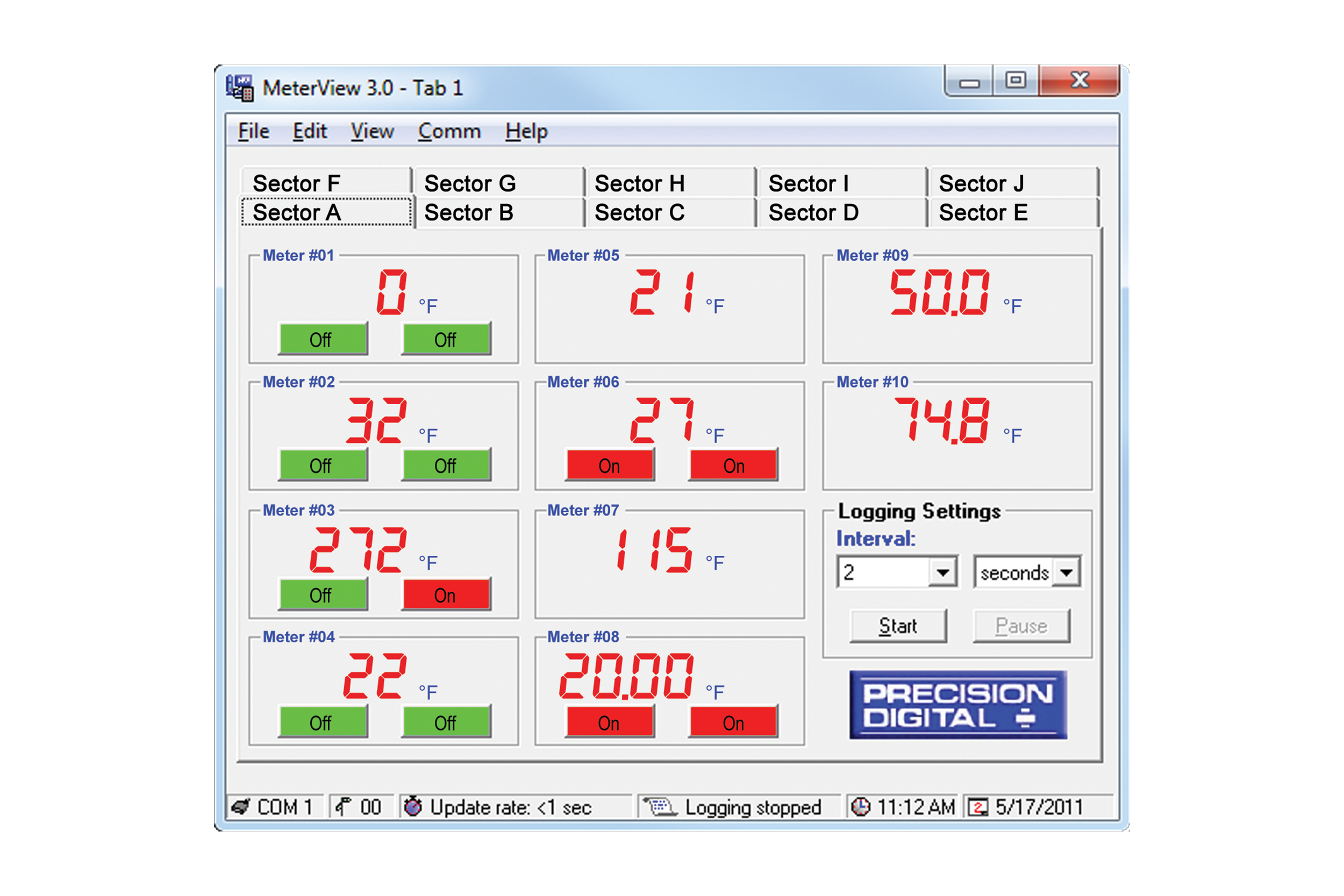
MeterView software allows all PD765 or PD8-765 setup parameters to be programmed from a PC and to save the configuration settings to a file for reporting or programming other meters. For programming purposes, MeterView software connects to the PD765 or PD8-765 meter via a PDA8006 USB serial adapter.

NOTE:

PD765 or PD8-765 meters are not powered from USB connection and require external power to be programmed.


Connecting to the Computer

MeterView software can be installed on any Microsoft Windows 10/11 computer. Connect the meter to the computer using PDA8006 USB serial adapter (sold separately). The meter is powered via USB, so there is no need to wire anything before programming it. USB connection is intended for configuration purposes only.

Specifications
General


System Requirements

Microsoft Windows 10/11


Communications

RS-232 adapter or RS-485 adapters with an RS-232 to RS-485 or USB to RS-485 converter may be used for communicating with the meters.


USB Adapter for Programming Only

For programming purposes, MeterView software connects to the PD765 or PD8-765 meter via the low-cost PDA8006 USB serial adapter.


Number of Meters

Up to 100 meters simultaneously with addressing capability; minimum scan time for 100 meters: 60 sec


Meter Address

00 to 99


Baud Rate

300 bps to 19,200 bps; selection must match the baud rate selected in the meters.


Screen Update Rate

Dependent on system and meter settings. Rates of up to 10 meters/second are attainable at 19,200 bps.


Configuration

Configure meter settings one meter at a time.


Configuration Report

Save configuration to PDC file format or export to HTML for printing, cloning, or restoring meter.


Logging Interval

2 seconds to 60 hours or manual


Manual Logging

Data saved to file when Log button is pressed.


Data Logging Report

Log data to HTML file format. All enabled meters are logged to a single file.


Alarm Notification

Pop-up message indicates new alarm condition. Alarm alert notification may be disabled.


Event Log

Important events are logged with date and time stamp.


Relay/Alarm Status

Indicate relay/alarm status with customized color and message label. Relay status indication may be disabled.


Units & Tag Number

Show engineering units and tag number information; these settings are not saved to the meter.


Relay Acknowledge

Relays may be acknowledged by clicking on corresponding Relay Status button. Meters must be set up for manual reset and Relay Mode must be enabled in MeterView.


Latest Version

3


PDW Manager PC Programming Software

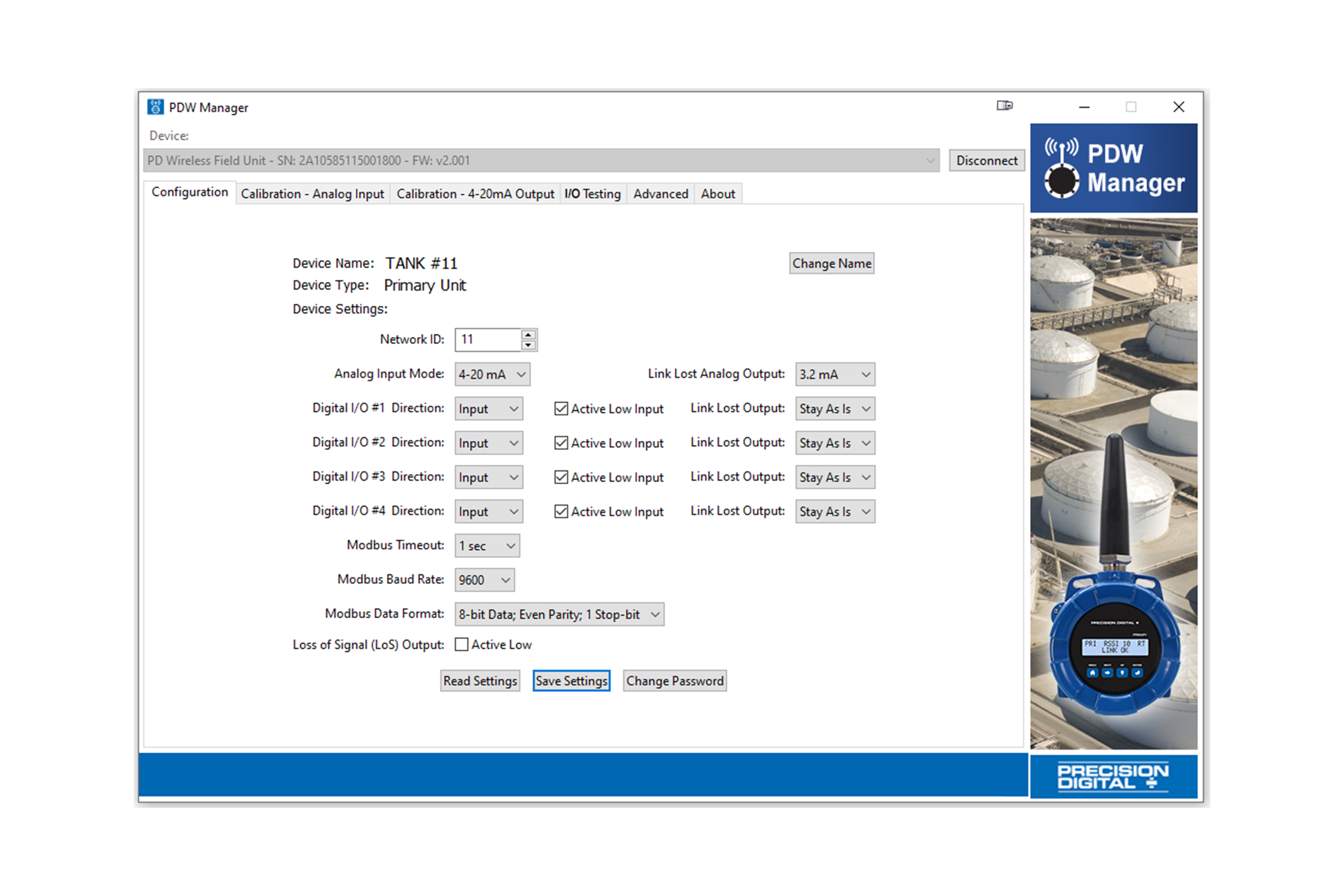
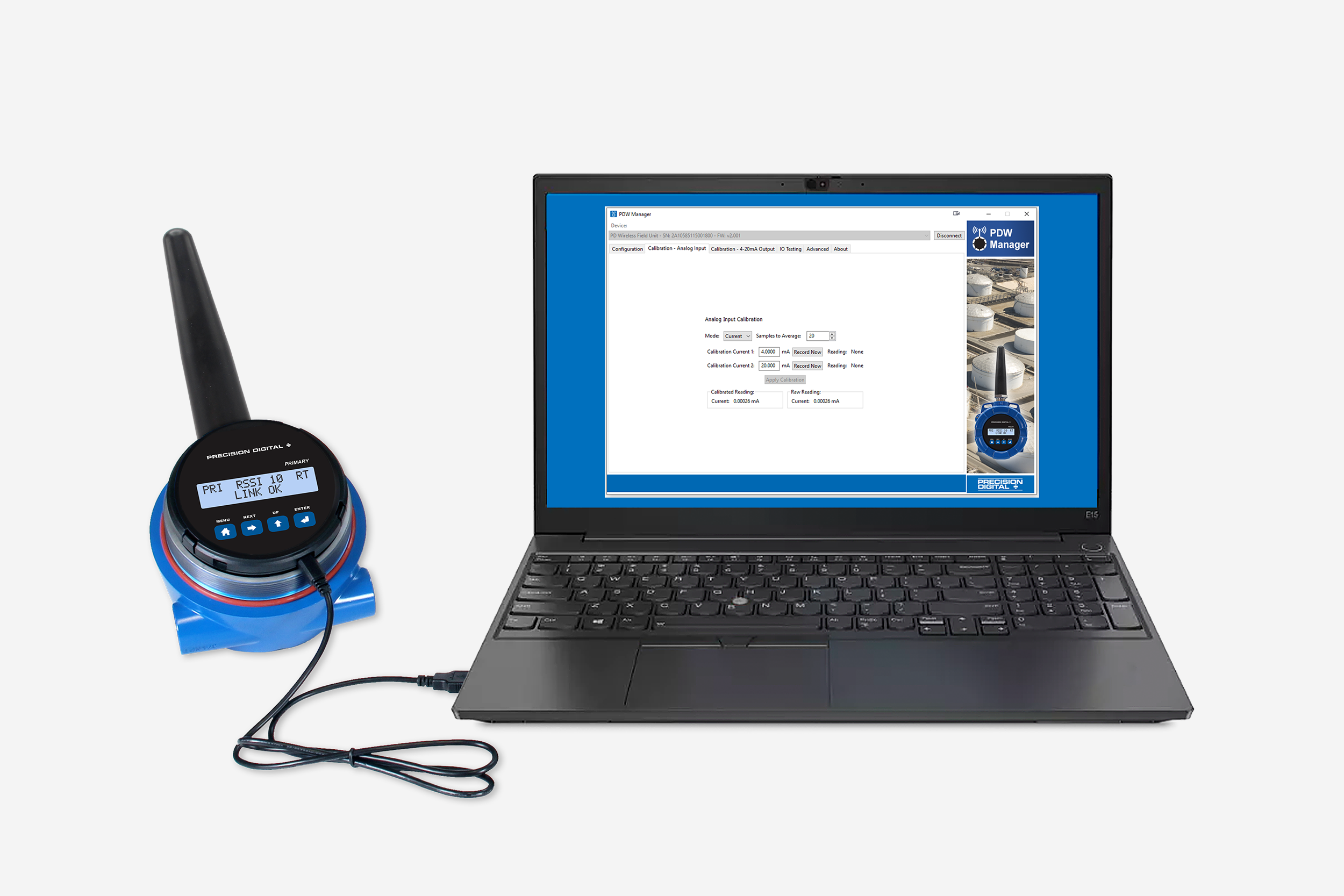
PDW Manager software is an easy-to-use tool for programming the PDW30 or PDW90 wireless products. All that's required is a PC with a USB connection, and you'll be up and running in no time. Use of PDW Manager is required for programming the PDW90 base station or advanced settings, such as wireless encryption, and analog signal calibration.


Connecting to the Computer

PDW Manager software can be installed on any Microsoft Windows 10/11 computer. Connect one end of a USB cable to the device and the other end to the computer. The device is powered via USB, so there is no need to wire anything before programming it. USB connection is intended for configuration purposes only. Configure devices one at a time.

Specifications
General


System Requirements

Microsoft Windows 10/11


USB Drivers

USB drivers for the PDA8006/PDA8008 serial communications adapters are available for download. These drivers allow a PC to recognize the adapter and enable proper serial communication between the meter and MeterView/MeterView Pro software. Driver installation may be required before the adapter can be used for data monitoring or other serial communication functions.

NOTE:

Driver installation may be required before the adapter can be used for data monitoring or other serial communication functions.


Specifications
General


System Requirements

Microsoft Windows 10/11


SuperNova Monitoring & Programming Software

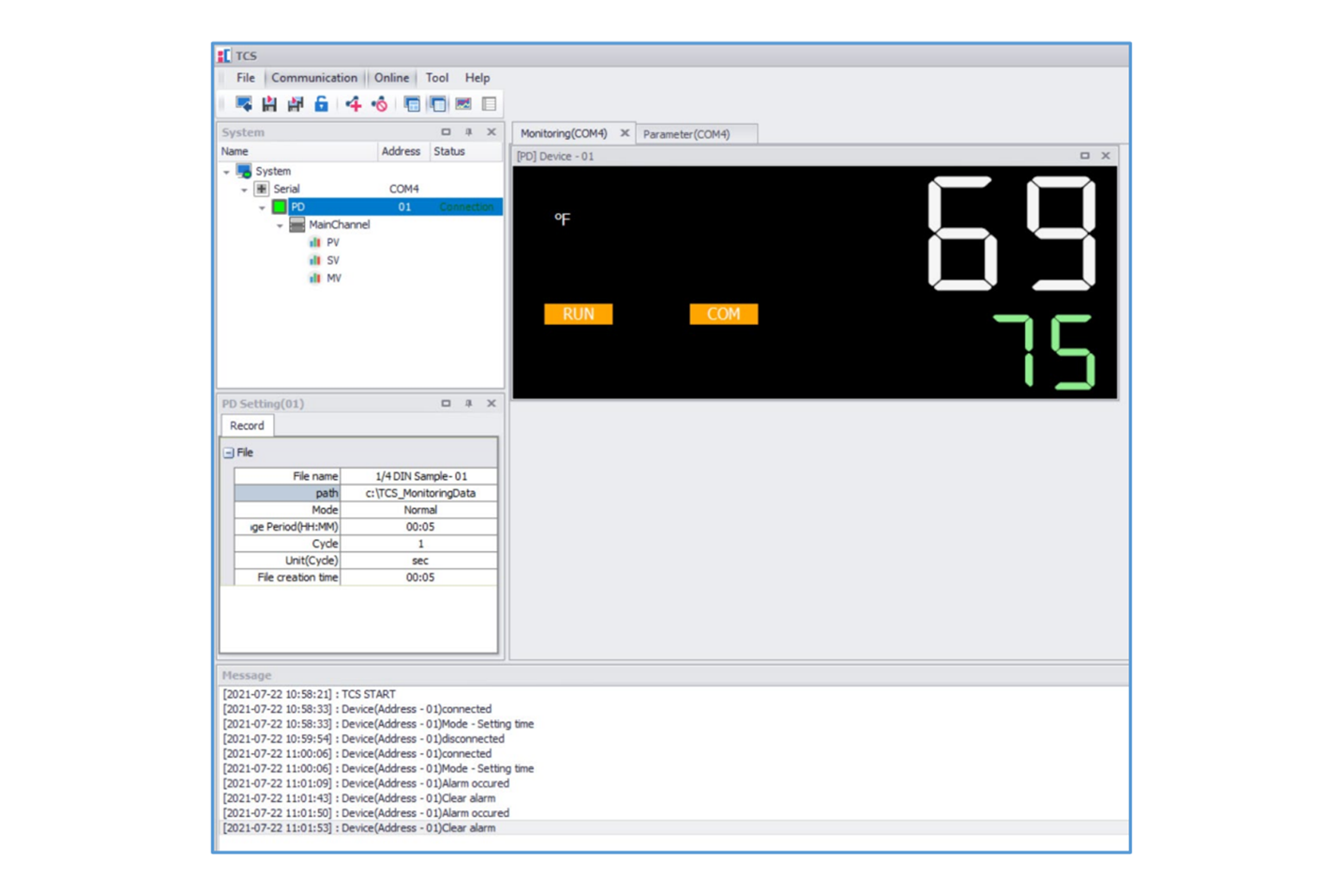
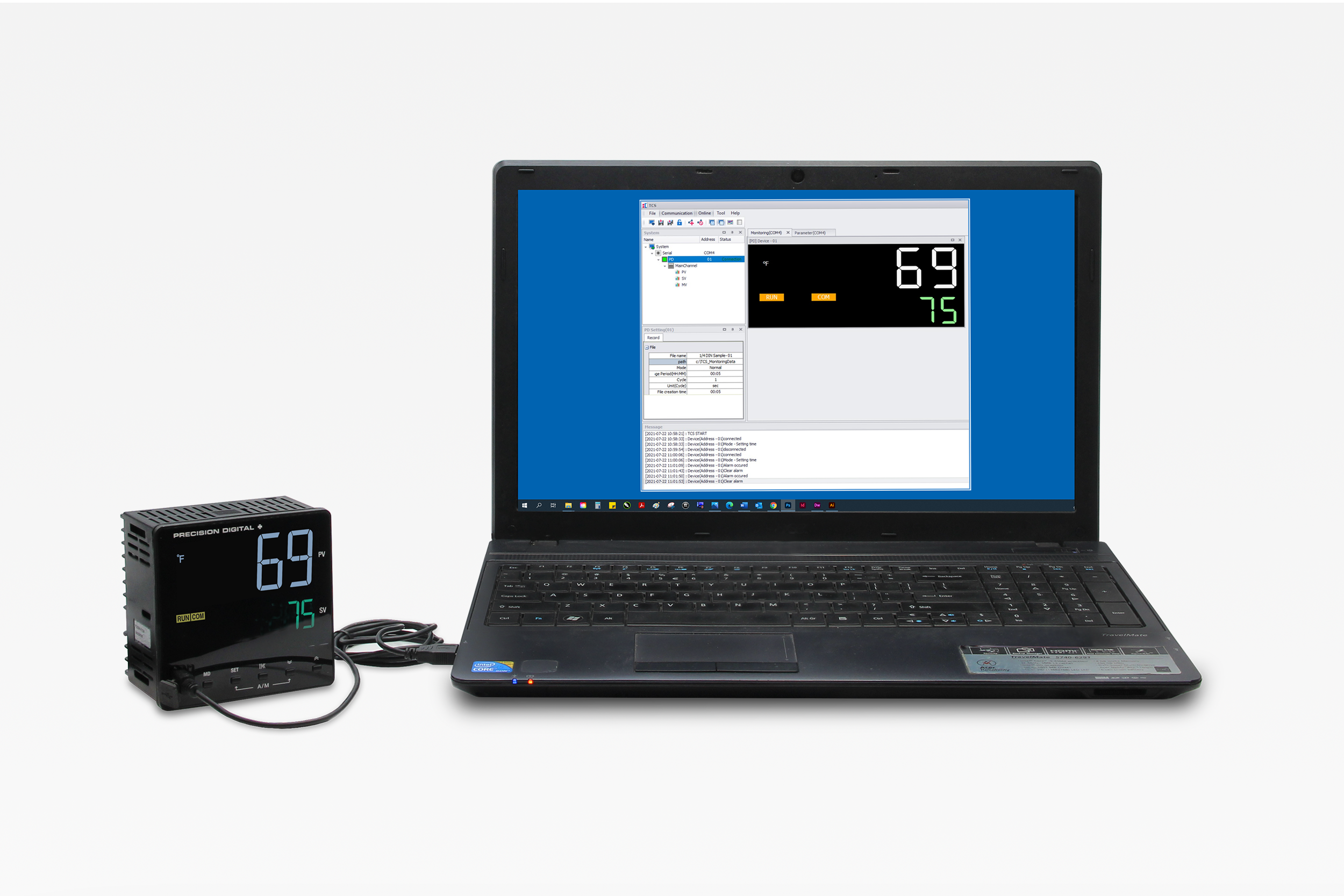
The SuperNova line of controllers includes the free SuperNova TCS monitoring and programming software. The easiest and quickest way to connect to the SuperNova TCS software is to use the on-board mini-USB port available on all SuperNova controllers.


This software can be used for monitoring, data logging, programming, and troubleshooting SuperNova controllers.

SuperNova TCS software can connect to a maximum of 31 units when using the RS-485 communications option. A single unit can be connected via the USB connection.


Connecting to the Computer

Supernova TCS software can be installed on any Microsoft Windows 10/11 computer. Connect one end of a USB cable to the controller and the other end to the computer. The controller is powered via USB, so there is no need to wire anything before programming it. USB connection is intended for configuration purposes only. A single controller can be connected via the USB connection. RS-232 to RS-485 converter or USB to RS-485 converter can be used for programming, monitoring, and data logging of multiple controllers.

Specifications
General


System Requirements

Microsoft Windows 10/11


MeterView XL Programming Software

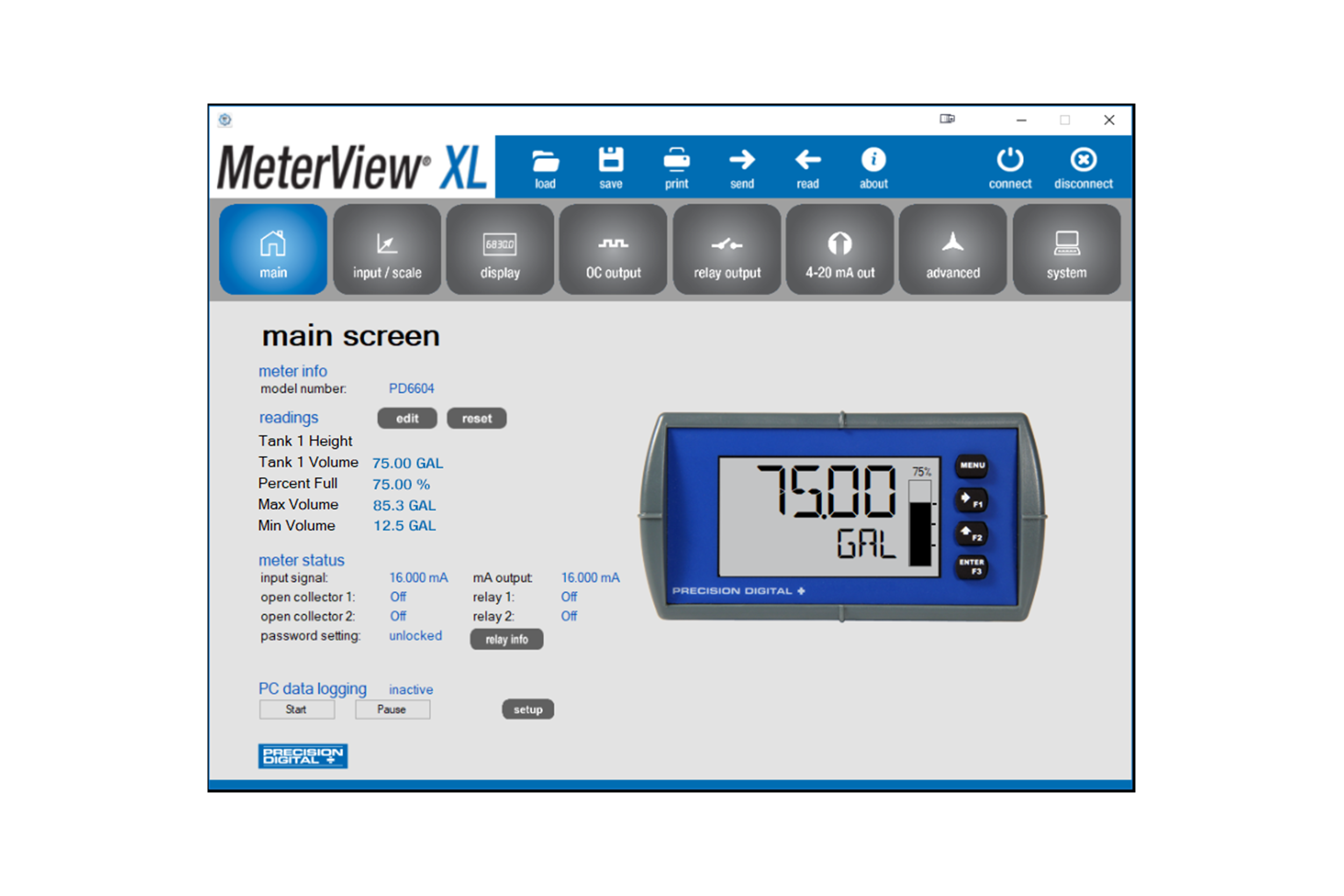
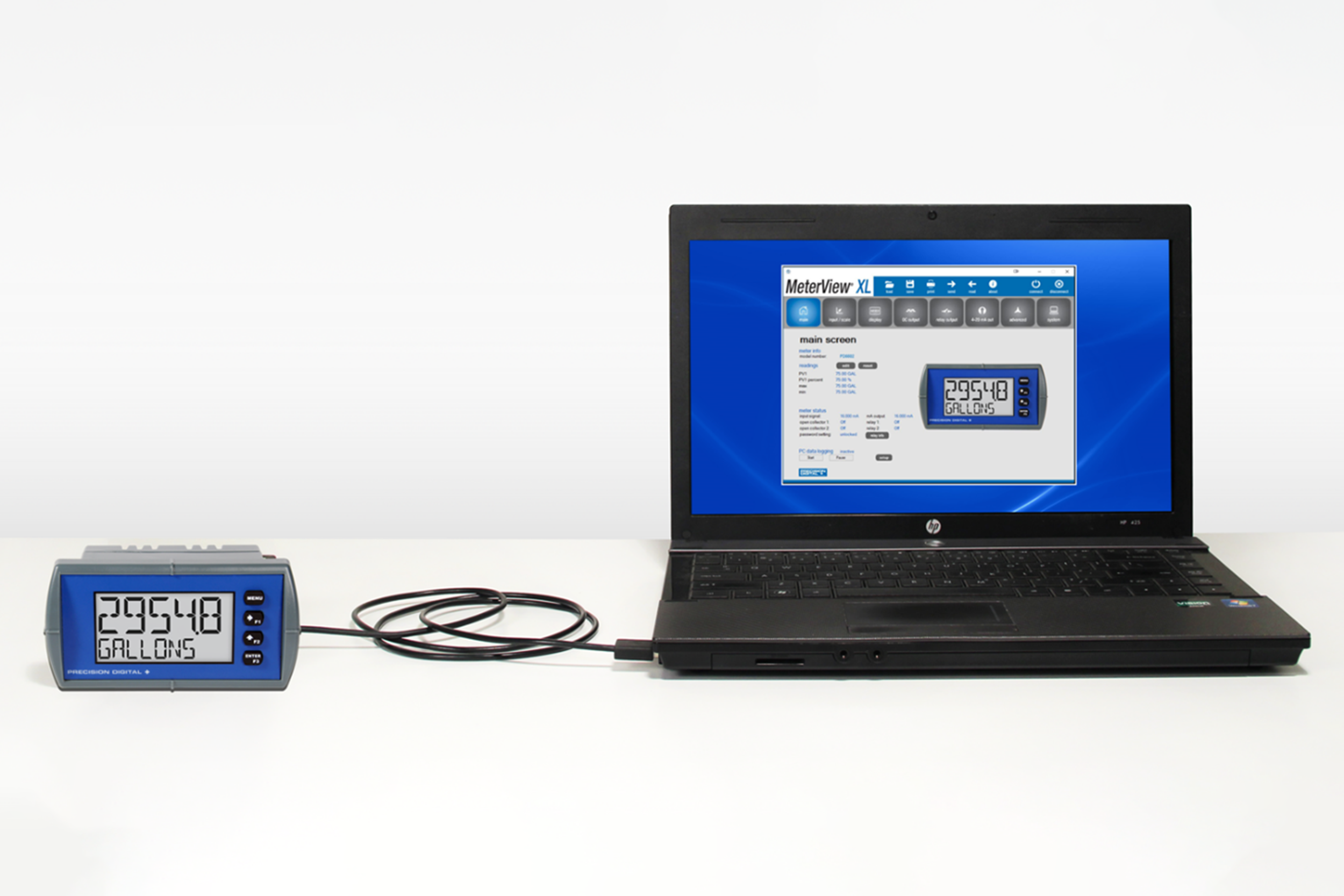
MeterView XL software connects directly to the meter via a micro USB cable and is available for programming and setup of Loop Leader, Loop Leader+, ProtEX+, and VantageView+ series process meters and flow rate/totalizers. MeterView XL software is used to program parameters for a wide variety of applications such as tank level, pump alternation, rate/totalizing, batch control, and more. This software greatly simplifies the programming process and also allows the user to save configuration files for later use. When connected to the PC, the meter is powered by the USB connection, so no additional power is needed during programming.

IMPORTANT!

Uninstall previous versions before downloading and running the latest version.


Connecting to the Computer

MeterView XL software can be installed on any Microsoft Windows 10/11 computer. Connect one end of a USB cable to the meter and the other end to the computer. The meter is powered via USB, so there is no need to wire anything before programming it. USB connection is intended for configuration purposes only.

Specifications
General


System Requirements

Microsoft Windows 10/11


Communications

USB 2.0 (Standard USB A to USB B) Cable not provided


Configuration

Configure all parameters on the meter. Configure meters one at a time.


Configuration Files

Generate with or without meter connected; Save to file for later use.


USB Power Connection

The meter is powered by the USB connection during programming.

There is no need to apply external power.

Note: The meter will not be damaged if external power is applied to it during programming.


Compatibility

Programs created for Loop Leader and Loop Leader+ may be run on either meter. Programs created for VantageView+ and ProtEX+ can be run on either meter. No other program sharing is permissible.


Latest Version

2.1.1


ScanView Ex Programming Software

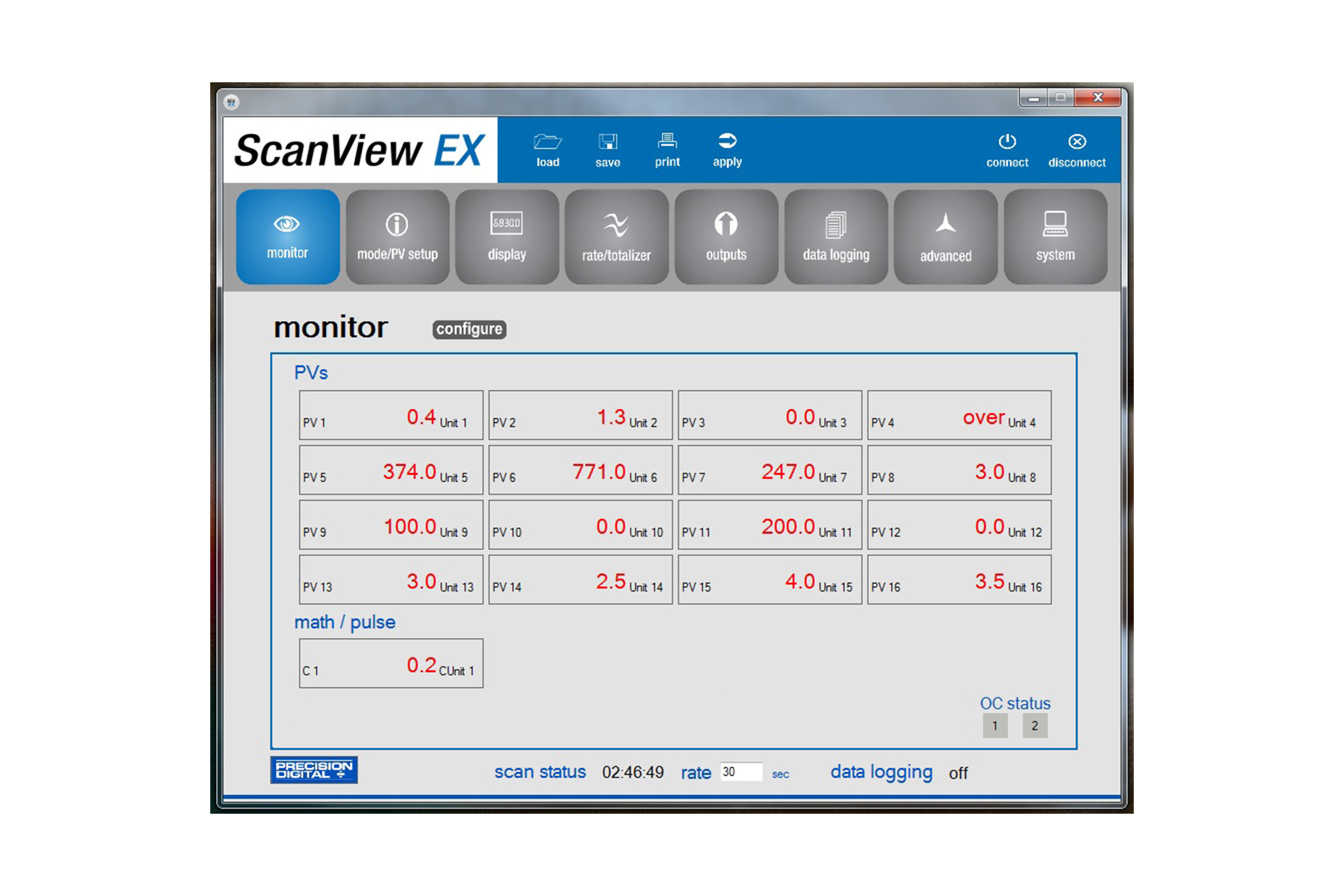
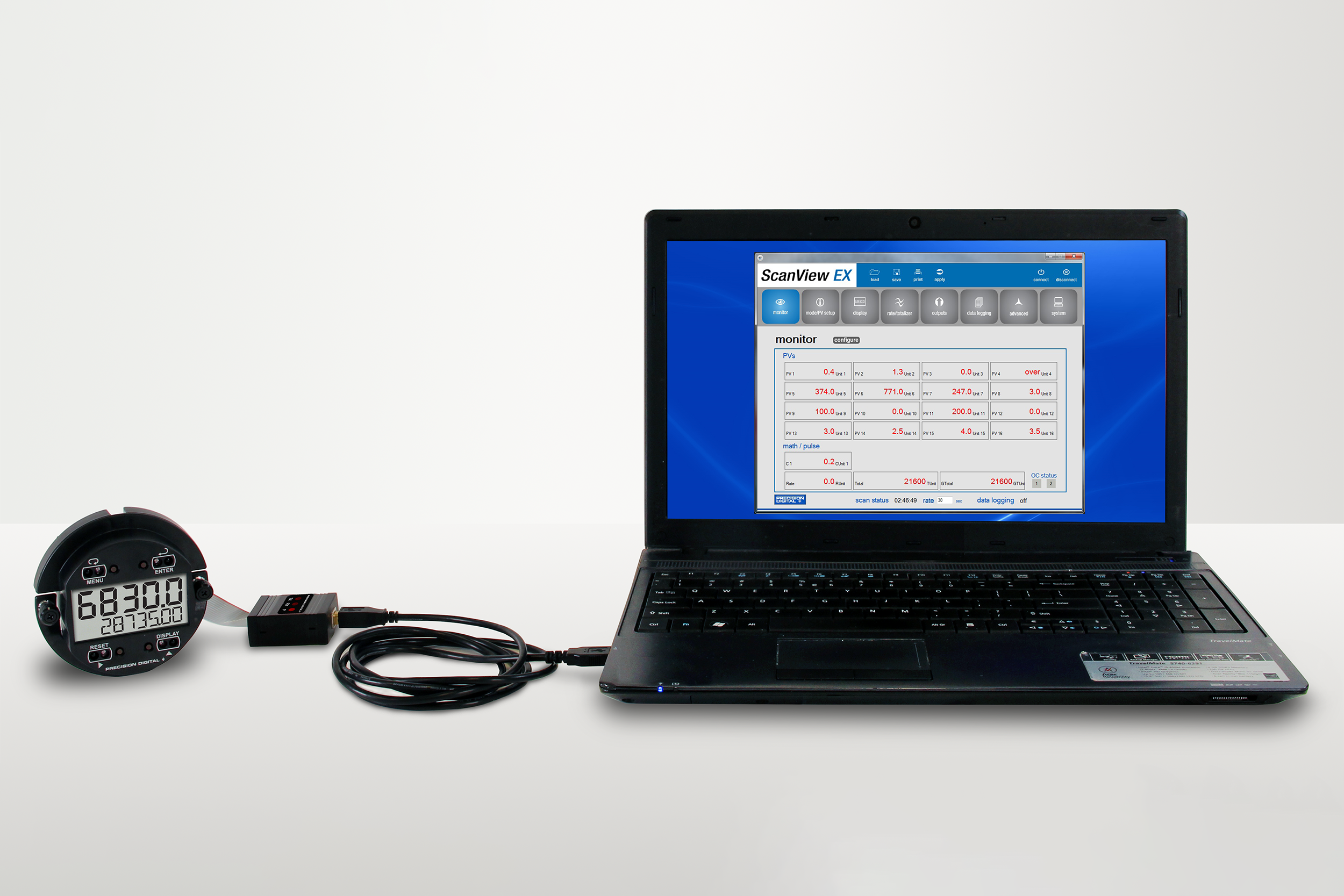
Configure any Vantageview PD6730X Safe Area Modbus Scanner or any ProtEX PD6830X Explosion-Proof Hazardous Area Modbus Scanner using the PC-based ScanView EX software. ScanView EX is available as a free download (adapter required). ScanView EX makes complete scanner configuration quick and easy. Copying one scanner configuration to another, as well as saving or retrieving a scanner's configuration file, is a snap. ScanView EX's intuitive layout and easy-to-understand interface make any scanner configuration simple to complete. A PDA8068 meter-to-USB adapter is available for a quick & easy PC connection. ScanView EX is an extremely useful tool that eliminates a lot of button pushing and minimizes any confusion when setting up a PD6730X or PD6830X.

IMPORTANT!

Uninstall previous versions before downloading and running the latest version.


Connecting to the Computer

ScanView EX software can be installed on any Microsoft Windows 10/11 computer. Connect the scanner to the computer using a PDA8068 Meter-to-USB adapter (sold separately). The scanner is powered via USB, so there is no need to wire anything before programming it. USB connection is intended for configuration purposes only. Configure one scanner at a time.

Specifications
General


System Requirements

Microsoft Windows 10/11


Communications

All models: PDA8068 Meter-to-USB adapter,

RS-232 to RS-485 converter, or USB to RS-485 converter.

PDA8068 comes with a USB cable.

PDA7485 does not come with an RS-232 cable; a standard RS-232 cable may be used.

PDA8485 does not come with a USB cable; a standard USB cable may be used.


Scanner Address

1-247


Baud Rate

1,200 - 115,200 bps


Configuration

One scanner at a time


Data Logging Report

Save as CSV file format


Protocol

Modbus RTU


Latest Version

1.2


ConsoliDator+ Configuration Software

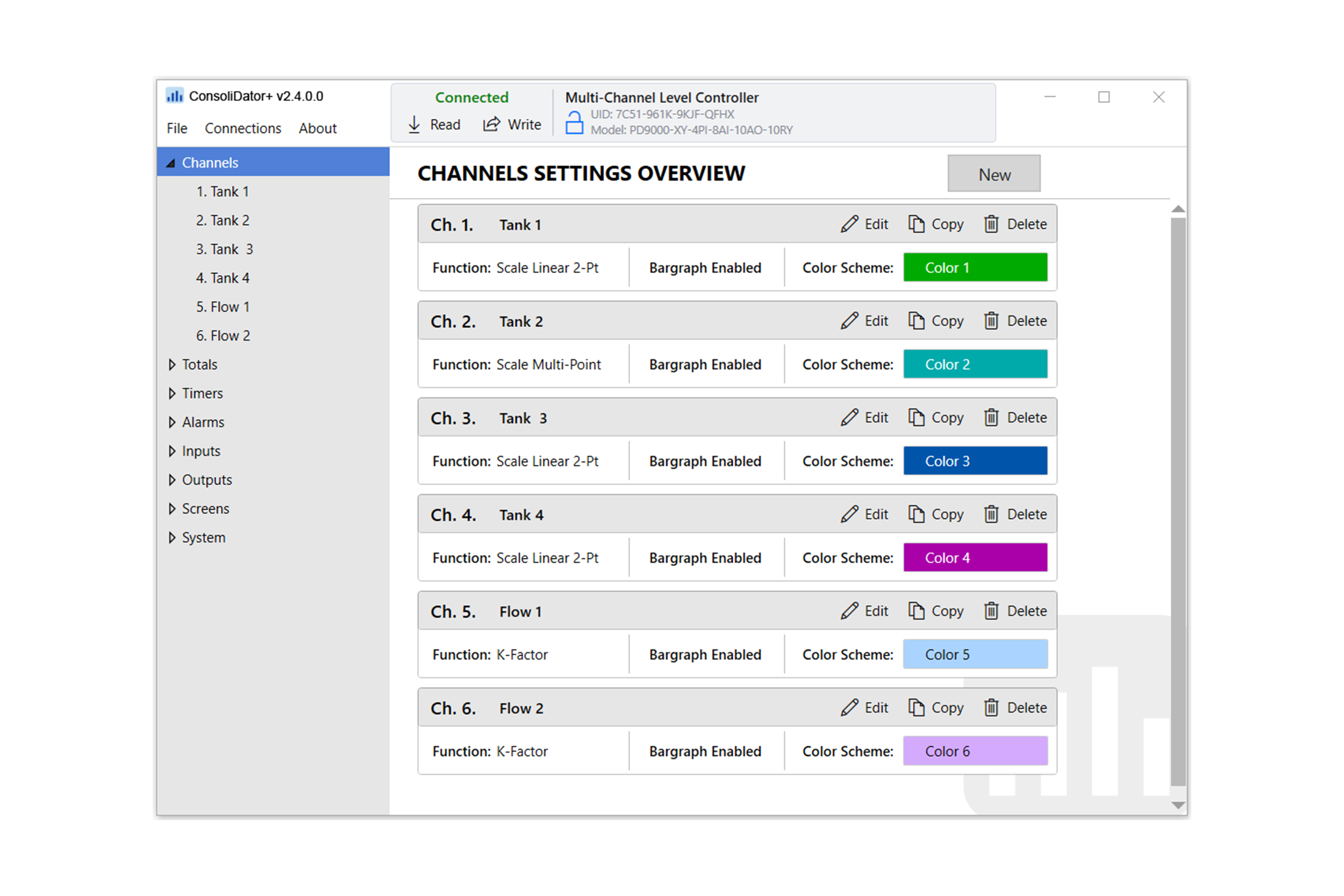
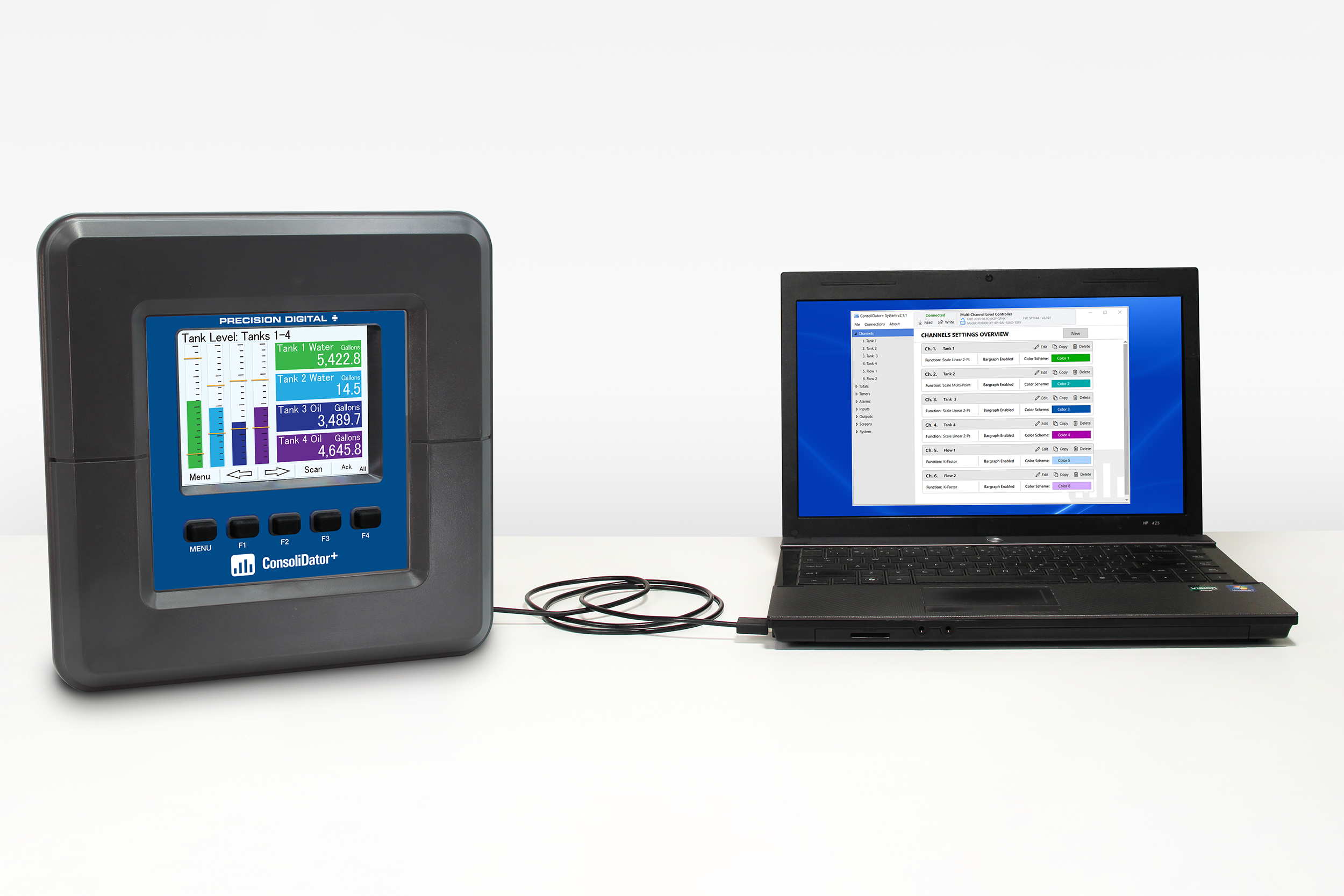
The simplest and fastest way to program the ConsoliDator+ multivariable controller is by using the free ConsoliDator+ configuration software. This intuitive software allows most users to set up their controller without needing to consult the manual.


After programming your controller to your specifications, follow the manual's wiring instructions to connect it for your application and proceed with installation. If adjustments are needed post-installation, you can easily modify the programming using the front panel soft keys and the guidance provided in the manual.

IMPORTANT!

The ConsoliDator+ software version must be used with the corresponding firmware version (e.g. Software v2.2 & Firmware v2.2)


Connecting to the Computer

ConsoliDator+ configuration software can be installed on any Microsoft Windows 10/11 computer. Connect one end of the provided USB cable to the controller and the other end to the computer. The controller is powered via USB, so there is no need to wire anything before programming it. USB connection is intended for configuration purposes only.

Specifications
General


System Requirements

Microsoft Windows 10/11


Compatability

The software and firmware versions must be matched. CAUTION: Do not write configuration files created using older versions of the firmware and software to controllers with Add-On features enabled (Ver. 2.1 & up). This can create undesirable results, especially with the function keys F1-F4.


Connection

Standard USB A to Micro-USB type B (cable included)


Configuration

Configure inputs and outputs, channels, totals, timers, alarms, etc. Configure bargraph and panel colors for normal operation, and colors for alarm indication. Save controller settings file on PC for programming other controllers or to restore settings.


Latest Version

2.4.1.2


Discontinued Products

Please click here for a PDF version of our list of Discontinued Products and possible replacements. For more information or for products not found on our list, please contact Sales.